onsdag den 19. juni 2013

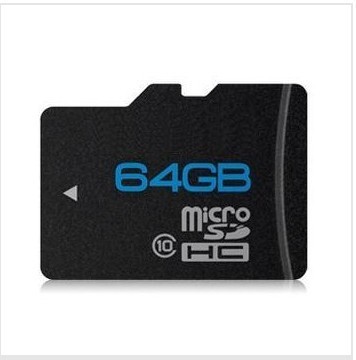
64 GB Micro SD Card .. $15 US


Now i have not received my memory cards yet, but usually the top purchased products on aliexpress is not fake. A single comment states that it is Class 6 and not 10. But even so. 15$ for 64 GB is still a pretty good deal for the most average use for a Micro SD card.

If you plan on using as memory for your Raspberry Pi. Don't. Class 10 makes a great difference in speed, and every bit of speed is needed for the little 600 MHz Raspi.


Update: The card is 64 GB.  However the R/W speed is Class 3, and the memory is poorly build. Using it for system or important files is NOT recommended.


Via Aliexpress

lørdag den 15. juni 2013

Onion Pi(e)


The Onion Pi is a WIFI access point that directs all your traffic through 3 layers of anonymizing Tor network.
follow the turotial here:

http://learn.adafruit.com/onion-pi?view=all

or skip some steps and buy a plug and play Onion Pi:

https://www.adafruit.com/products/1406

onsdag den 15. maj 2013

Build your own Pirate Box Darknet Network for less than 40$


A PirateBox is a self-contained mobile communication and file sharing device. Simply turn it on to transform any space into a free and open communications and file sharing network in the spirit of open source and sharing. The network is closed meaning that all devices connected can only discover, connect and interact with other devices connected to it. For dorms, schools or in your local library or favorite café. 

The meshnet allows the connected users to chat and share files over the closed network within the limited range it provides. The device is also really cheap and fairly easy to set up. It has a really low power consumption, meaning you should get days worth of up time on a single charged external battery charger power bank.


You will need the tiny TP-Link TL-WR703N router 
You will need to flash the router with OpenWRT
You will need to power it with something like this 5V 2000mAh external battery charger power bank
You will need a USB stick. 

On Android there is an app to access the darknet

On your IOS device, in the WIFI network selection select piratebox, and access its options by pressing the blue arrow. Disable "Auto Join" and "Auto Login". You should now be able to access your Piratebox in Safari.

When you have acquired all the parts for your very own darknet server, follow this tutorial:


Note: To SSH/Telnet into a device in Windows, use PuTTY


1. First download a custom copy of OpenWrt for the MR3020 (modified by Matthias Strubel to include all needed kernel-modules). See this thread on the forum for more info. For the WR703N, download this OpenWrt firmware

2. Set the toggle switch located beside the LAN/WAN port to WISP mode

3. Turn off your laptop’s wireless (in OSX, click on the wifi icon and select “Turn Wi-Fi Off”)

4. Connect the router via ethernet cable to your computer and open a web browser to http://192.168.0.254 (for the MR3020) or http://192.168.1.1 (for the WR703N)

5. Enter the default username & password (admin & admin)

6. Navigate to System Tools > Firmware Upgrade and select the OpenWRT firmware

(Note: The WR703N firmware text is in Chinese. To flash OpenWrt from the web interface, select the last menu item on the left, and then the third submenu item. More info in this Village Telco post).

7. After the upgrade completes, the system will restart

8. Telnet to the device:
telnet 192.168.1.1


9. Use the passwd command to set your login password – this will enable SSH:
passwd


10. Edit the network file with vi (vi cheat sheet):

NOTE: The following instructions assume your gateway router’s (home router’s) IP address is 192.168.2.1. If your gateway router differs from this, you will need to modify your network file accordingly. Keep in mind that your OpenWrt (PirateBox) router should not have the same address as your gateway router though it will need to be on the same subnet in order to access and download files from the Internet.
vi /etc/config/network


The modified file should look like this:
config interface 'loopback' option ifname 'lo' option proto 'static' option ipaddr '127.0.0.1' option netmask '255.0.0.0' config interface 'lan' option ifname 'eth0' option type 'bridge' option proto 'static' option ipaddr '192.168.2.111' option netmask '255.255.255.0' option gateway '192.168.2.1' list dns '192.168.2.1' list dns '8.8.8.8'


11. Remove the power from the router.

12. Turn ON your laptop’s wireless (for OSX, click on the wifi icon and select “Turn Wi-Fi On”)

13. Connect the MR3020 (or WR703N) to your gateway router (e.g. your home network router) with an ethernet cable and plug the power back in. Wait a couple of minutes until the router boots up. With your computer connected to your home network, try sshing into the router (Note: use the “ipaddr” you assigned in step 9):
ssh root@192.168.2.111


14. Ping google to ensure your firewall settings are correct:
ping google.com


15. Add USB support to OpenWrt by installing and enabling the following packages (Note: this step is not required if you used the customized OpenWrt image from step 1):
opkg update opkg install kmod-usb-uhci insmod usbcore ## may return: file exists insmod uhci opkg install kmod-usb-ohci ## may return: up to date. insmod usb-ohci

Install PirateBox

Next you’ll need to install PirateBox on the router.

1. Connect your USB drive (formatted to FAT32 with only one partition) to the USB port.

2. Install the mkPirateBox package by issuing the following commands.
cd /tmp opkg update && opkg install http://piratebox.aod-rpg.de/piratebox_0.6.3_all.ipk


3. Optional: Install the Kareha Image Board:
/opt/piratebox/bin/timesave.sh /opt/piratebox/conf/piratebox.conf install /opt/piratebox/bin/install_piratebox.sh /opt/piratebox/conf/piratebox.conf imageboard


Afterwards, edit the Kareha image board config file to change the admin username and password (ADMIN_PASS and SECRET):
vi /opt/piratebox/www/board/config.pl


4. Once the install is completed, unplug the ethernet cable and disconnect the power for at least 10 seconds.

5. Restart the device and join the “PirateBox – Share Freely” network. Open any web page and you should be redirected to the PirateBox menu.

6. Begin sharing files and chatting!


This tutorial was copy pasted from David Darts
mandag den 13. maj 2013

Samsung Exynos 4412 based Android TV box for $125 ..


Normally, i prefer to steer clear of the Rockchip and Allwinner based boxes due to the low support for open source development. i will mention them from time to time if the specs and build quality is worth mentioning, since there is some development taking place with Linux for both Allwinner and Rockchip devices that makes them a very decent mini pc for the most basic needs.

This new Android TV box sports a 1.4 GHz Exynos 4412 ARM Cortex-A9 quad-core chip, ARM Mali 400 graphics, WiFi, HDMI, IR remote control, and 2 USB ports. The development for boards like the Hardkernel's Odroids of XBMC seems to be going well, even though the most useful version is still the Android libstagefright build, progress is coming along with a Linux based build with hardware accelerated playback.


via Aliexpress

mandag den 6. maj 2013

Stable Release of the User Friendly Custom Build of XBMC for Android is Out

For some reason i just can't get myself to use the XBMC build for Android that uses third party media players, like the MXPlayer. Somehow it takes the idea out of even using XBMC. if you are going to use third party players why not just install Mizuu and use that. Now i know that Mizuu does not offer the same ammount of addons that XBMC related developers brings to the party. But still. I dream of a version of XBMC with full hardware accelerated video playback on a low end cheap device.

And the AMLogic maeson 3 boxes really do work amazingly well with the Linux based XBMC version, but it still has quite a few bugs that makes the device freeze up or restart. It is still only in Beta 2, but still. i would also prefer a bit more GHz and RAM to make the experience more fast and smooth.

But the stable XBMC Android version is out. The one that offers playback using third party players. So that is good news for those who don't mind using a bit dirty setup.


Step 1: Install the “MX Player” application to your Android device. You can do this through the Google Play store, or simply by navigating to this page on your device’s web browser and then clicking on the appropriate download link below:
MX Player for NEON DevicesMX Player for Non-NEON Devices 
Step 2: Launch and exit the “MX Player” application on your device at least once before continuing. 
Step 3: Download and install the “XAF Custom Build of XBMC” to your Android device. You can do this by navigating to this page on your device’s web browser and then clicking on the appropriate download link below: 
XAF Custom Build for NEON Set Top BoxesXAF Custom Build for NEON Touch Screen DevicesXAF Custom Build for Non-NEON Touch Screen Device 
NOTE: Should you encounter any errors at this point, make sure to Enable “Unknown sources” under “Security -> DEVICE ADMINISTRATION” within your device’s “Settings” panel. 
Step 4: Once it’s done installing, launch the “XBMC” application on your device for the first time, wait a minute before you begin using it so all updates can go through, then jump right in!

Note: Most newer hardware are NEON devices. Start there if you are unsure what category your device is in.

The news story of this Android build also comes with a XBMCHUB song and music video. i have left it out since it makes me cringe big time. if you still want to see it, check out the source.

via XBMCHUB

G-Box Midnight MX2 - Someone have had their ear to the ground


Matricom have been busy shaping out their second G-box, inside the 99$ media player is a AML8726-M6 CPU that means it is a no go for the current Linux based XBMC builds, even though development is taking place for both M6 and MX. Matricom have made sure that WIFI reception is way better with this box than with a lot of the competition, and the Android XBMC build streams 720p and 1080p flawlessly.


  • Amlogic AML8726-MX Dual Core Cortex A9 CPU + dual core Mali-400 GPU
  • System Memory – 1GB DDR3 RAM
  • Storage – 8GB Flash + SD card slot (Up to 32GB)
  • Video Output – HDMI v1.4, composite (CVBS) and component (YUV)
  • Audio Output – HDMI, AV, and SPDIF
  • Connectivity – 802.11b/g/n internal Wifi + 10/100 Ethernet Port
  • USB – 4x USB 2.0 Ports (1 might be OTG)
  • IR sensor
  • Power Supply – 5V/2A


via CNX software

søndag den 5. maj 2013

TheLittleBlackBox. Yet another AMLogic XBMC box. But with amazing development behind it.

The Development team behind the Meason based Linux build of XBMC is now releasing a box of their own.

inside is what looks like the standard specs of the countless AMLogic based devices, but with a development team behind it, this will surely have a chance to be the low-cost XBMC device that so many people seem to be looking for. With a price of 99.99€ it is a bit more expensive than most other amlogic devices, and team has promised that they will not stop developing on the other amlogic builds for the g-box midnight, bluetimes and smart tv box that they have refered to as a go-to device in the past.